Add and import users

Add and import users

Let your people be part of your innovation process as well as part of your solution. Add new users to collect ideas and improve collaborationYour users can contribute with their ideas, knowledge, opinions and expertise to your innovation process.

IMPORTANT: Only the Administrator of your Innovation Cloud environment can add new users. 

To add new users click on your name in the upper right corner of the screen and from the drop-down menu choose the System Settings option. Go to the User Management tab.
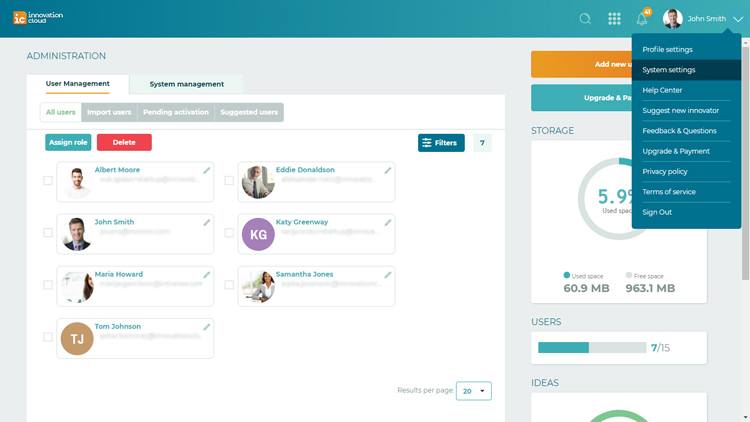
IC user management 

You can add new users in two ways:

One by one, by clicking on the orange button Add a new user in the upper right corner of the screen. Fill in the user details and submit the entry.
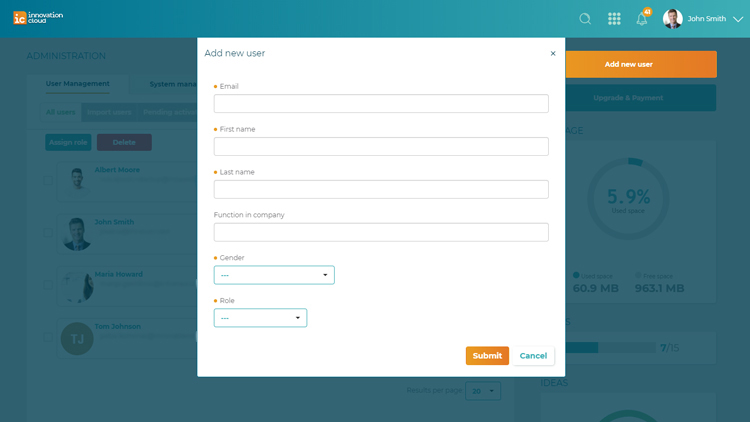
IC add new user

Import users in bulks, by choosing the Import users tab. Download the CSV template and after filling the file with user details, attach the CSV template and click on the Start import button. When the import is finished, click on the Save changes button.
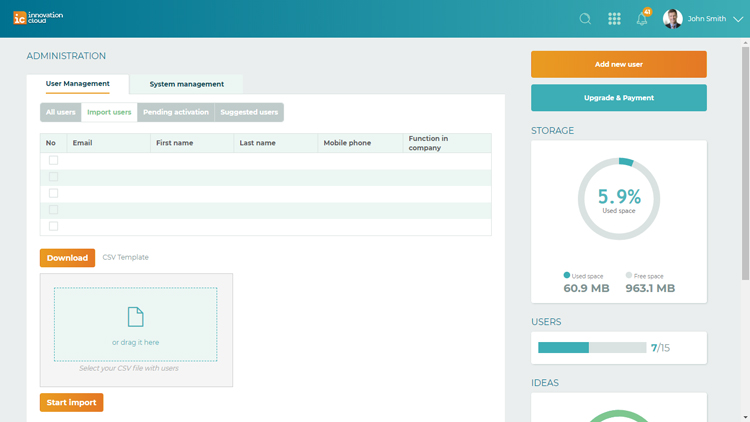
 IC import users

Added users will receive activation emails directly in their inbox.
For those users who fail to activate their account in a timely manner, the Administrator can reactivate their account from the Pending activation list tab. Activation mail will expire in 5 days.
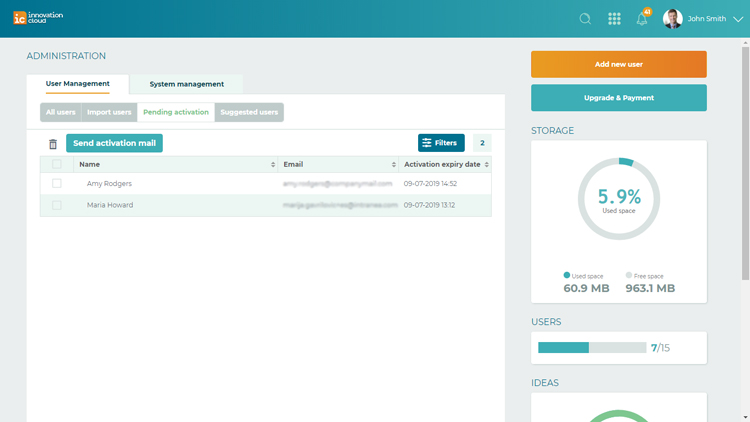
IC pending users


    • Related Articles

    • Apply roles to users

      Innovation Cloud Startup account has only two roles. Admin role and Contributor role. The Administratorof the Innovation Cloud Startup account has access to all functionalities of the platform. The Administrator can manage users, Idea Folders and ...
    • Add idea

      Ideas can be added by anyone who has access to your Innovation Cloud. Innovation Cloud enables your team to share and collaborate on ideas anytime and from anywhere. You can add ideas in three different ways: 1. Home page (Ideaboard view) > Big ...
    • Delete users

      IMPORTANT: Only the Administrator of your Innovation Cloud can delete users. To delete a user, please go to the System settings > User Management - an overview of all active users on the platform. Mark checkboxes beside users you want to delete and ...
    • Suspend users

      IMPORTANT: Only the Administrator of your Innovation Cloud can suspend users. To suspend a user, please go to the System settings > User Management. Locate the user you want to suspend and click on the pencil located on the upper right corner of the ...
    • Remove roles from users

      IMPORTANT: Only the Administrator of your Innovation Cloud account can remove roles. Each user can carry only one role. To Remove a role from a user, please go to the the System settings option > User management. The list of all the active users will ...