Apply roles to users
Innovation Cloud Startup account has only two roles. Admin role and Contributor role.
The Administratorof the Innovation Cloud Startup account has access to all functionalities of the platform. The Administrator can manage users, Idea Folders and ideas.
Contributors can add ideas and collaborate on ideas by voting and adding comments, documents or images.
IMPORTANT: Only the Administrator of your Innovation Cloud account can set role for users. Each user can carry only one role.
To set roles to users, please go to the System settings > User management. The list of all the active users will appear on your screen.
Apply a role to a single user or to multiple users by marking the desired user(s) with a checkbox and clicking on the Assign role button located on the top of the All users list. Choose the role you wish to assign to a user from the role list and click on the Assign role button.
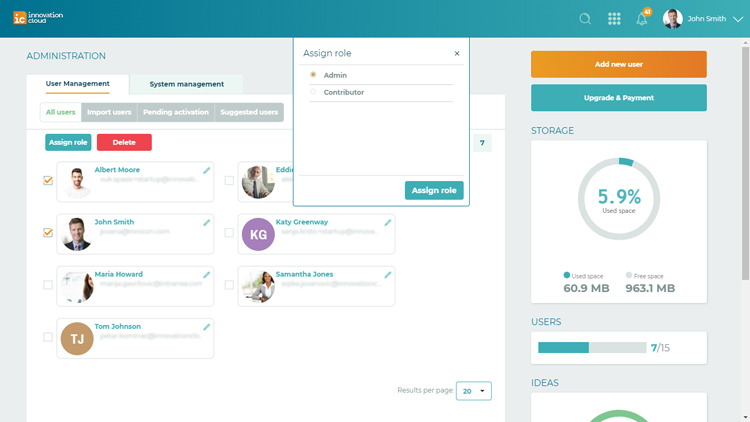
Note: You can set a role to a single user by using the Edit option, the pencil located on the right side of the single userbox. See the Edit user details. The role also can be set during the process of Adding users to the platform when filling the user details.
Related Articles
Remove roles from users
IMPORTANT: Only the Administrator of your Innovation Cloud account can remove roles. Each user can carry only one role. To Remove a role from a user, please go to the the System settings option > User management. The list of all the active users will ...Delete users
IMPORTANT: Only the Administrator of your Innovation Cloud can delete users. To delete a user, please go to the System settings > User Management - an overview of all active users on the platform. Mark checkboxes beside users you want to delete and ...Suspend users
IMPORTANT: Only the Administrator of your Innovation Cloud can suspend users. To suspend a user, please go to the System settings > User Management. Locate the user you want to suspend and click on the pencil located on the upper right corner of the ...Add and import users
Let your people be part of your innovation process as well as part of your solution. Add new users to collect ideas and improve collaboration. Your users can contribute with their ideas, knowledge, opinions and expertise to your innovation process. ...Edit user details
IMPORTANT: Only the Administrator of your Innovation Cloud can edit users. To edit user details, please go to the System settings > User management tab - an overview of all active users on the platform. To Edit user details click on the pencil ...